Sweaty hands. Fingers trembling slightly after a heavy set. Gloves. In that moment you open a workout tracker and are expected to enter weight and reps on a smartphone keyboard. That is not design — that is a test of patience. VigiGym removed the keyboard from the workout log entirely, keeping it only for notes.
Why the keyboard is the wrong tool in the gym
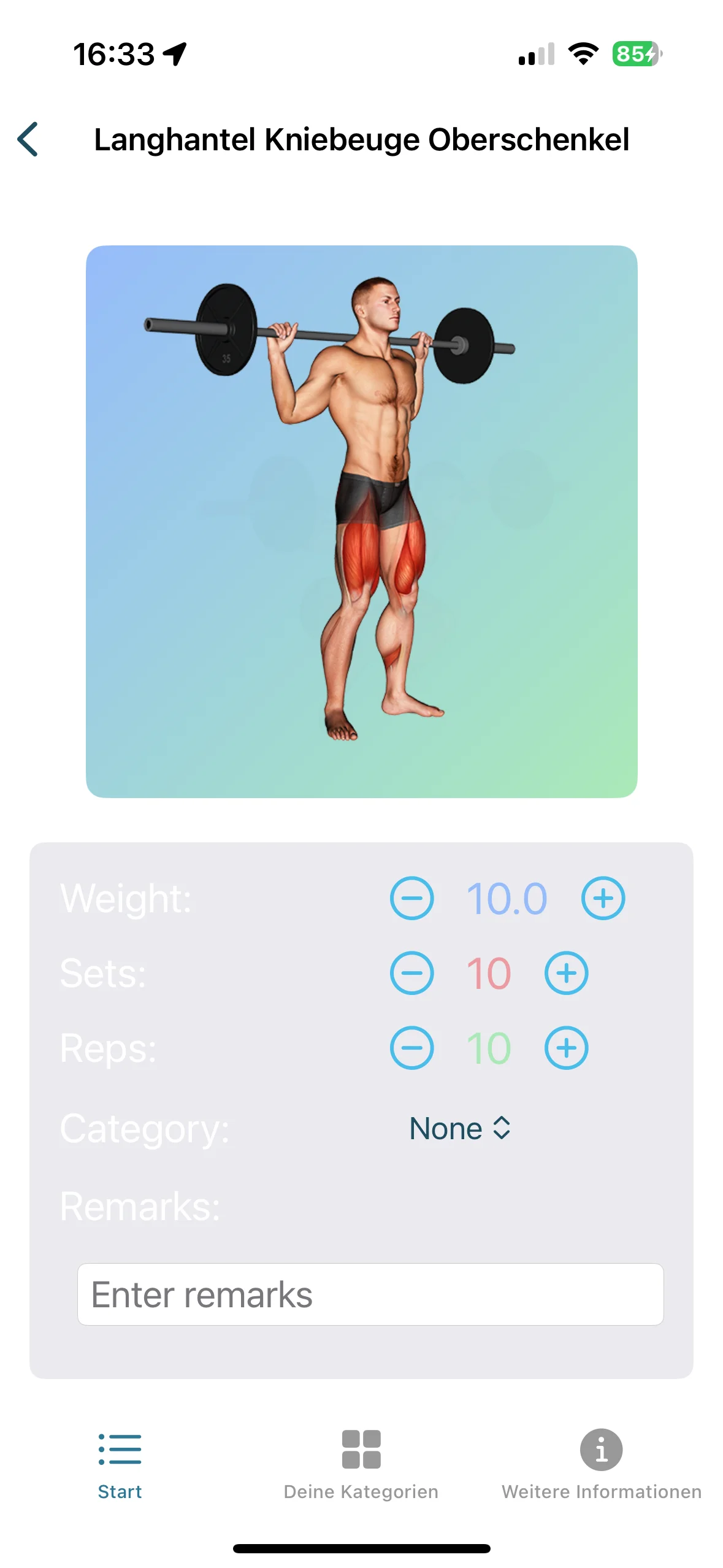
A smartphone keyboard was built for text messages, not strength training. The keys are small, the input fields even smaller. Under normal conditions that works. In the gym it does not.
After a working set, hands are often damp. Fine motor control drops off. What is normally a reflex becomes a task. Many apps underestimate this. I experienced it myself, time and again.
The result: you mistype, correct, hunt for the right value, type again. Three seconds become twenty.
Sliders for narrow ranges, wheels for wide ones
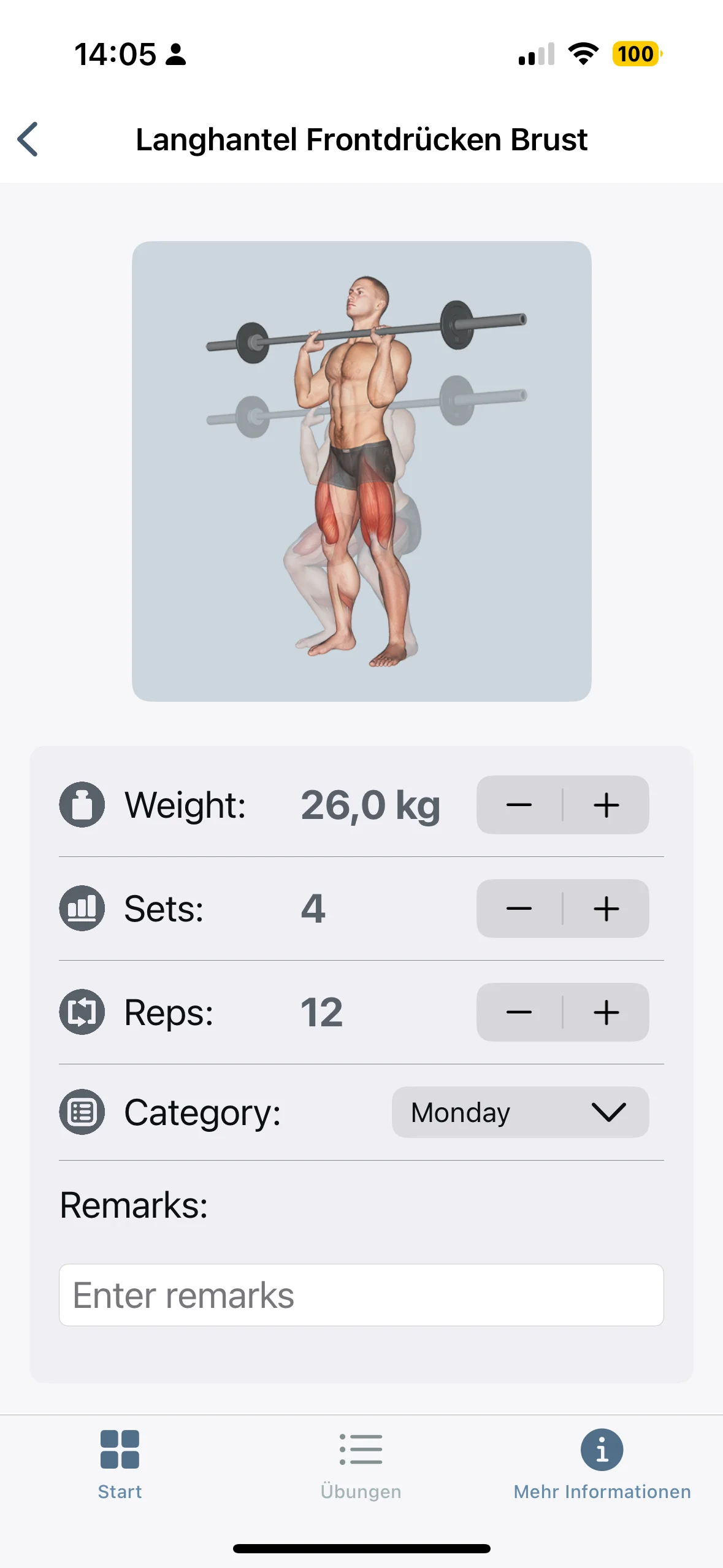
The solution was not a compromise. It came from a concrete analysis of the input situations that occur during training.
Sets move within a narrow range: 1 to 6. Reps: 1 to 20. For these spans a slider is the right tool. One touch, then swipe left or right. Precise even with gloves, accurate even with trembling fingers.
Weights cover a wider range — 20 kg to 200 kg depending on the exercise and progress. Here a wheel is the better choice: you scroll continuously, the value increases steadily, allowing you to zero in on your target value rapidly. Weights also have fractional steps like 0.5 kg that reps and sets do not require.
Both input elements share one thing: they only need a single touch to activate. No keyboard popping up. No fields to tap and then clear first.
How the right input method was found
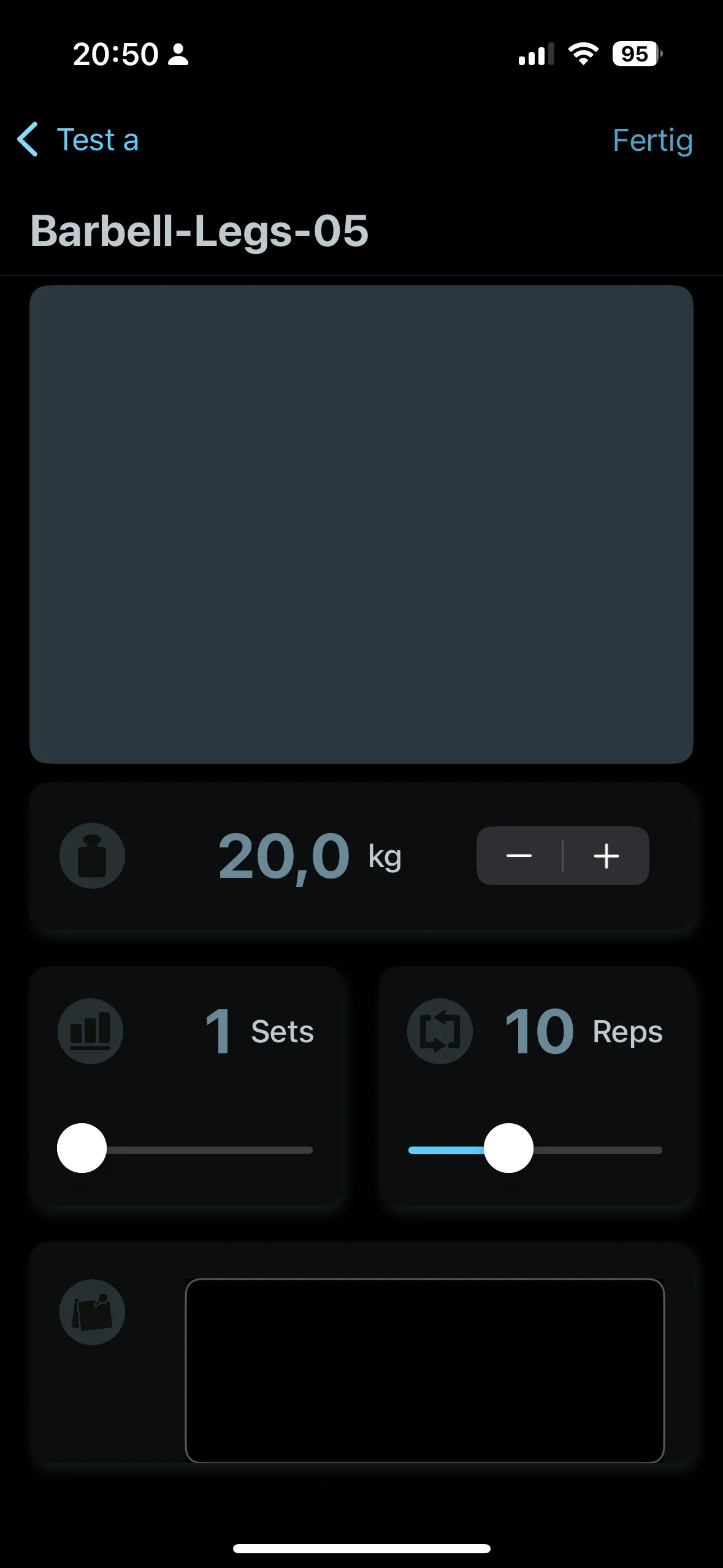
That sliders and a wheel ended up as the solution was not a foregone conclusion. I experimented with several variants before arriving at the current interface. The early screenshots make this clear: early versions of VigiGym used classic text fields, stepper elements, and other approaches that work fine on paper but hit their limits quickly under real training conditions.
Alongside this, the question arose of how the input element should actually appear. Two options were on the table: a modal that takes over the entire screen, or a sheet — a panel that slides up from the bottom while keeping the rest of the context visible. The sheet has a clear advantage here. You can still see which exercise you are logging, where you are in your workout, what the previous set was. Context is preserved. That matters in the gym, where attention is already split.
Why button size is not a minor detail
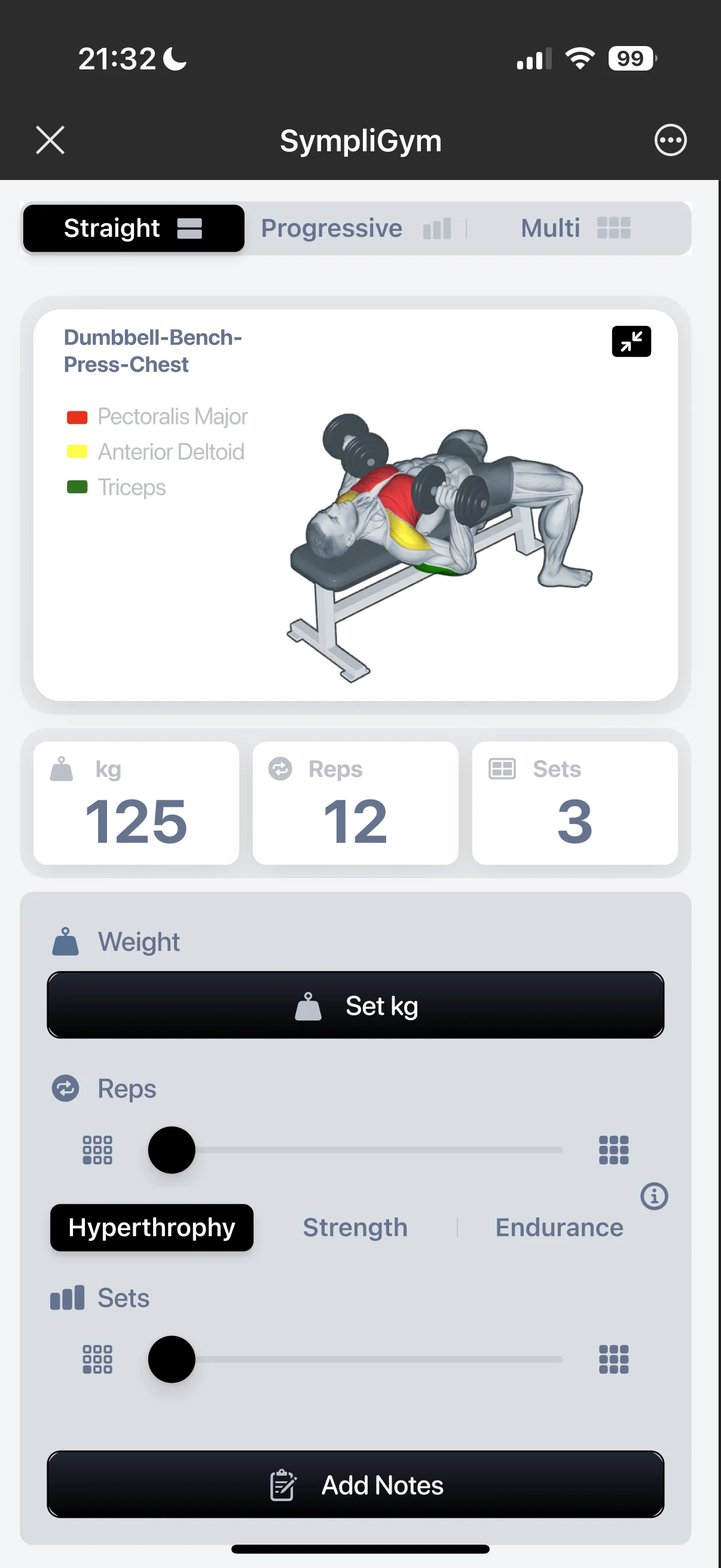
Most apps I analysed before building VigiGym had one thing in common: controls that were too small. Buttons adequate for casual screen use fail the moment precision decreases.
In VigiGym, every interactive element in the workout log is deliberately large. Not only because it looks better — though that was always part of the brief, since I designed VigiGym to be an app that is genuinely pleasing to use — but because it has to work in the gym. The app is used under real training conditions, not at a desk.
That sounds obvious. It is not.
The placement and sizing of every button is grounded in Fitts' Law: the larger the target and the shorter the distance to it, the faster and more accurately it can be hit. In a gym context this means: the larger the button, the lower the error rate at elevated heart rate and reduced fine motor control. This is not theory — it is measurable. Critical actions in VigiGym sit where the thumb reaches them most reliably under load: large, at the bottom of the screen, minimizing thumb travel.
Hick's Law shaped the entire UI/UX of VigiGym as well. The more options a user sees simultaneously, the longer a decision takes. VigiGym shows only what is relevant to the current set in the workout log. Everything else steps back.
What this means in practice: three seconds per value per set
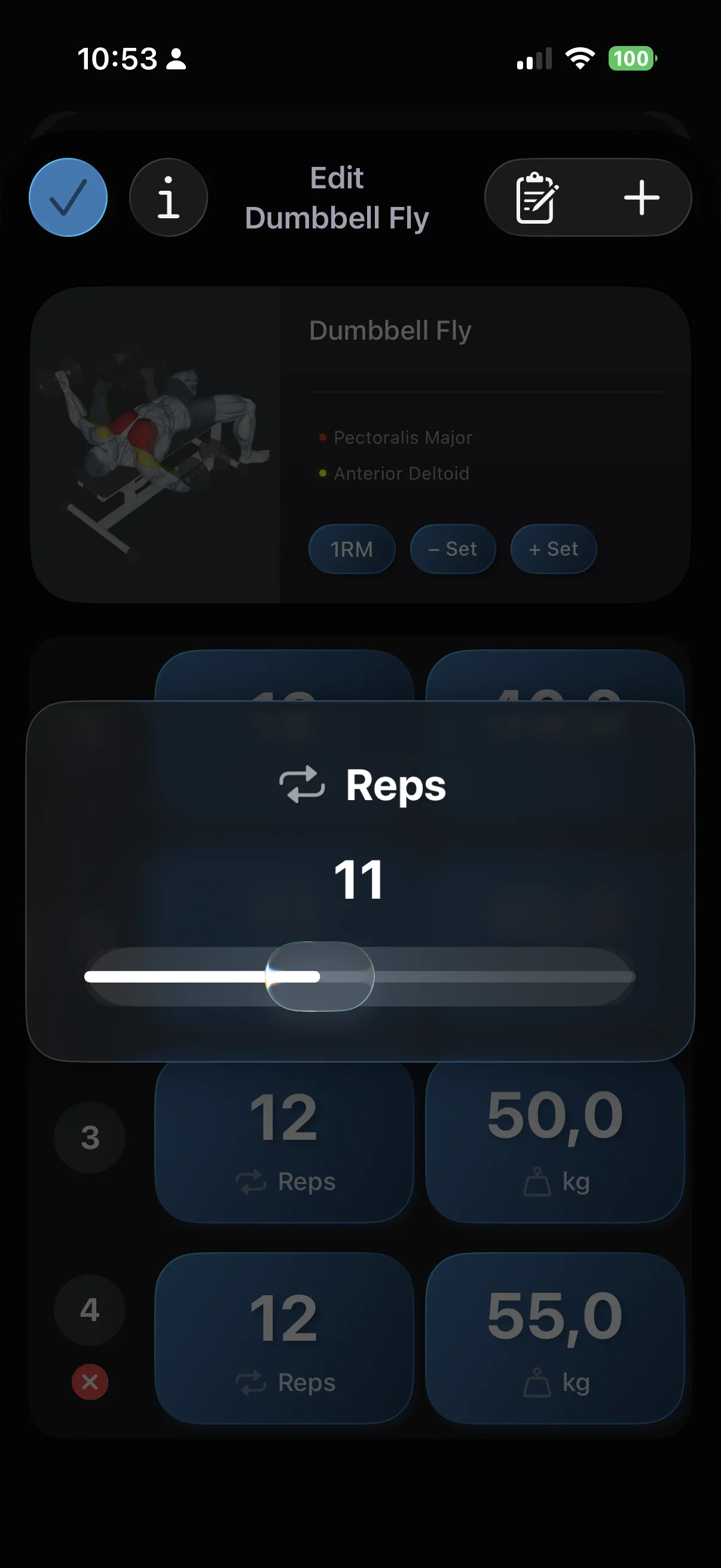
The promise of VigiGym is a workout log in three seconds. Sliders and wheels are the technical core of that promise.
You open the active set. You set weight, reps, and sets with one swipe each. You confirm. Done. The app fades from your focus. The iron does not.
That is not a marketing line. It is the result of a design philosophy that I, Achim Loobes, solo developer of VigiGym, have held to consistently from the very first commit: the app serves the training, not the other way around.
"Effectiveness and efficiency were never optimisation goals added after the fact — they were the actual starting point."
There is more behind that statement than a developer preference. Every feature, every button, every interaction in VigiGym had to answer the same question: does it get you to your goal faster and more reliably, or does it stand in the way?
My conviction as a developer is this: a workout tracker and training planner is good when you barely notice it. Not because it is invisible, but because it fits so naturally into the flow that it never occurs to you that things could work any other way. That is the feeling VigiGym aims for. In the gym. Under load. With sweaty hands.
Quick Summary
- No keyboard in the workout log — smartphone keyboards are too error-prone under training conditions: sweat, trembling, gloves.
- Sliders for narrow ranges, wheels for wide ones — sets (1–6) and reps (1–20) via slider, weights via wheel. One touch, one swipe, done.
- Sheet instead of modal — workout context stays visible while entering values. You always know where you are in your session.
- Fitts' Law & Hick's Law — large buttons in the right place reduce errors at high heart rate. Fewer options mean faster decisions.
Frequently Asked Questions
Can I still enter values manually via keyboard in VigiGym?
No. VigiGym deliberately avoids keyboard input in the workout log. Sliders and wheels cover all relevant value ranges and are faster and more accurate under training conditions.
Does VigiGym's input work with workout gloves?
Yes. Sliders and wheels were explicitly designed for use with reduced finger precision — including gloves, sweaty hands, and slightly trembling fingers after heavy sets.
Why does VigiGym use a slider for reps and a wheel for weight?
The value ranges are fundamentally different. Sets (1 to 6) and reps (1 to 20) are narrow ranges where a slider is precise and fast. Weights span a much wider range and vary by exercise. The wheel allows quick navigation across that range, including 0.5 kg increments.
What is the difference between a modal and a sheet in VigiGym?
A modal takes over the entire screen and hides context. A sheet slides up from the bottom and keeps the current workout context visible. VigiGym uses the sheet so you always know what exercise you are logging and where you are in your workout.
Ready to train smarter?
Free to download. Smarter training.


Achim Loobes
Solo developer, lifter, and the person behind every pixel of VigiGym. Writing code since 1985. Still training. Still shipping. Based in Mönchengladbach, Germany.